
This article is for merchants using the following Shopify integration: Add Partial.ly Checkout Button to Your Shopify Cart and/or Product Pages
You can learn more about our new Shopify integrations here: Partial.ly's Shopify Integration
Shopify integrations require you to use an automation platform like Zapeir, n8n, etc.
Adding Partial.ly to your Shopify site via code involves copying and pasting a snippet of code into your Shopify theme. This code will embed the Partial.ly checkout button onto your site.
You can view a sample store here: Partial.ly Shopify Demo Store
Make sure your Partial.ly account is set up. You can register at https://partial.ly/register. Once you register, you will need to:
- Connect Your Stripe Account.
- Create an Offer.
- Connect your Shopify Store.
You can generate the Partial.ly code with the integration tool of your offer.
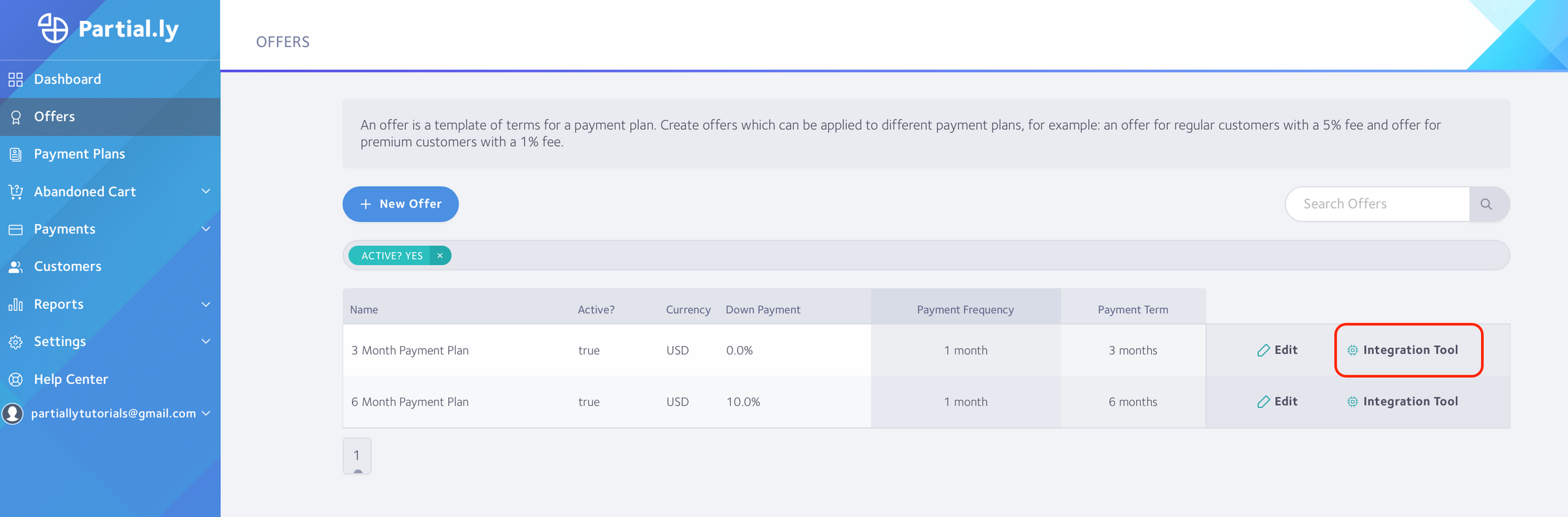
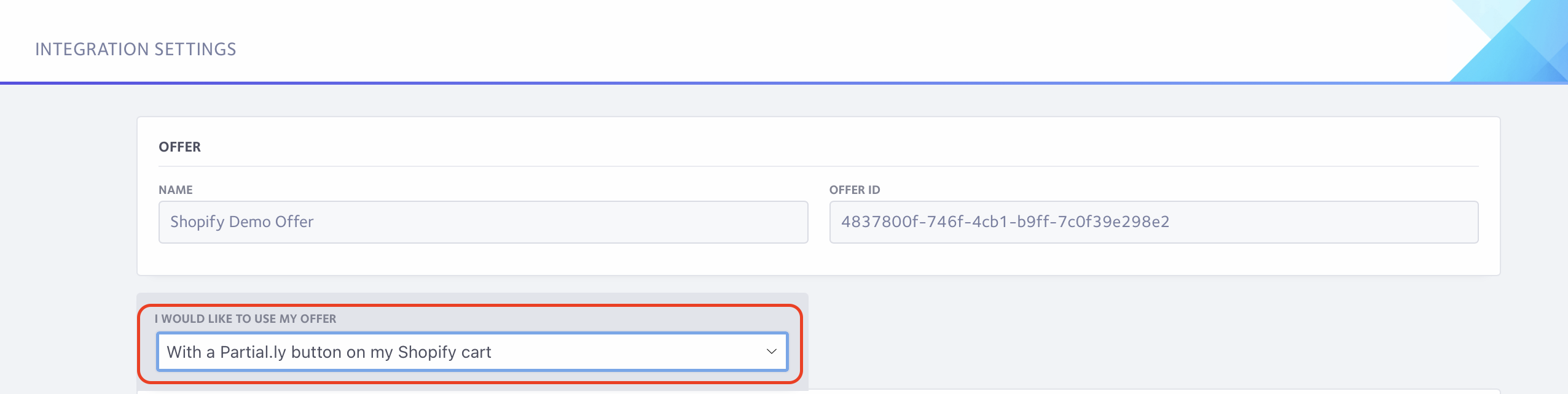
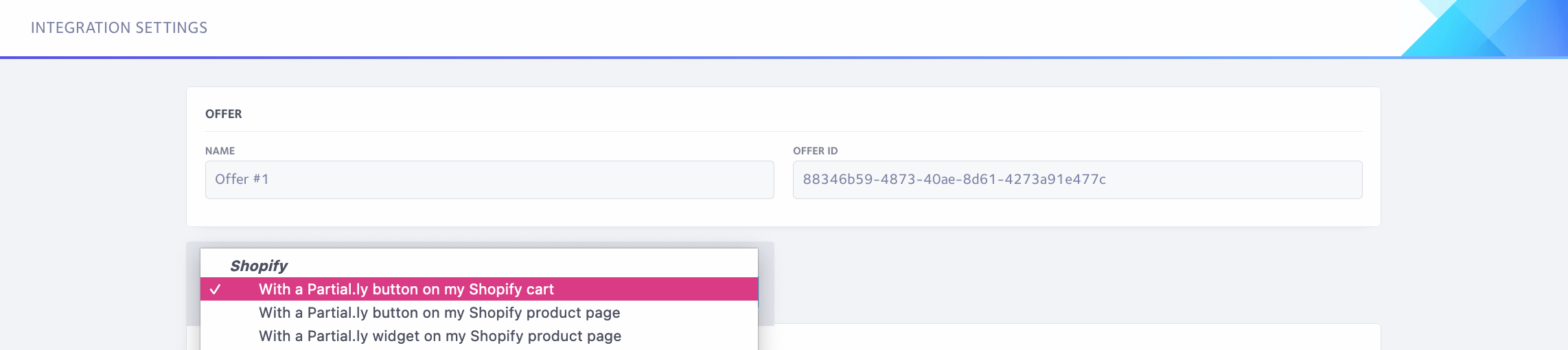
Once in the integration tool, select from the dropdown menu titled "I would like to use my offer". You will see* the option to use Partial.ly on your cart and product pages.
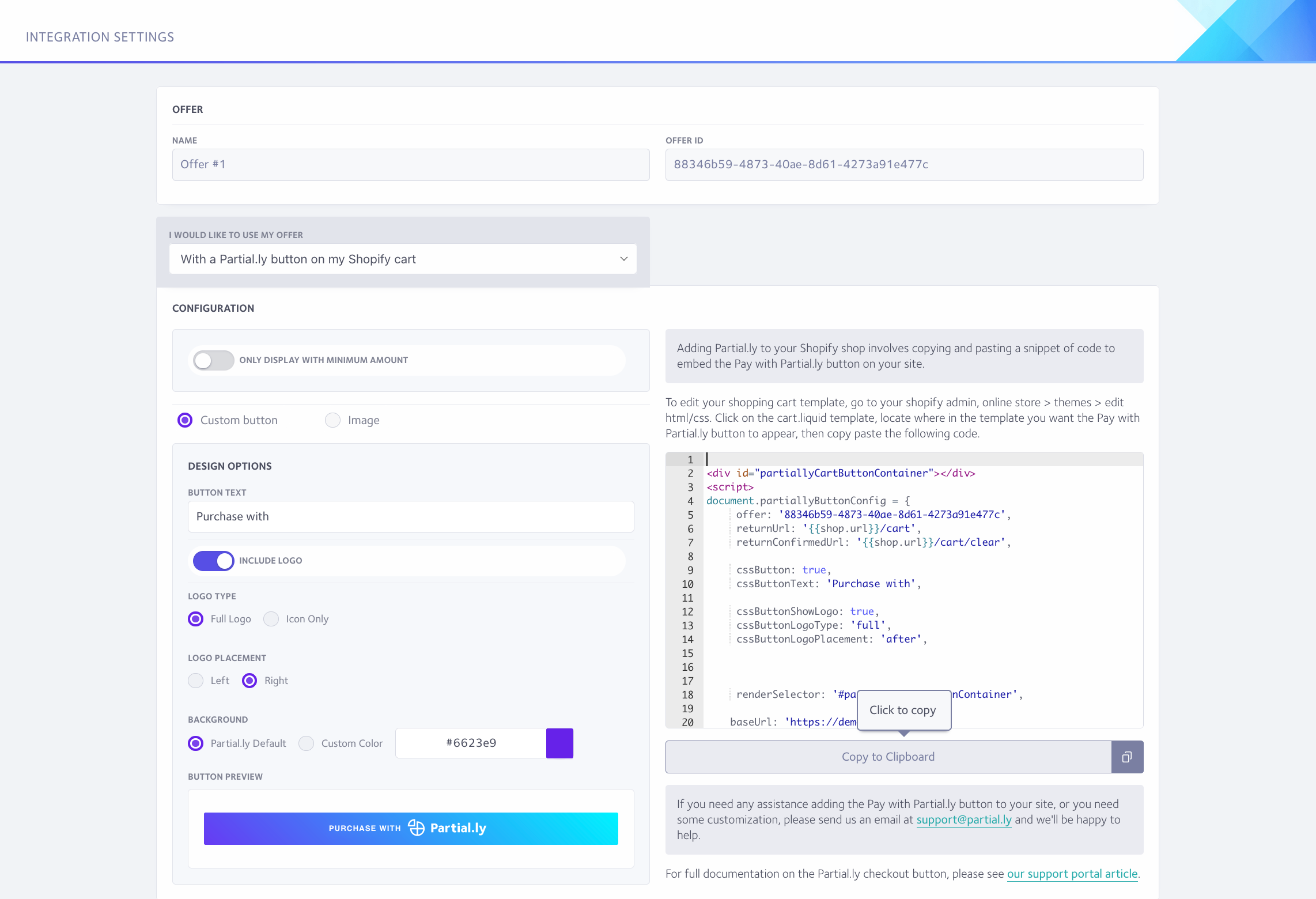
Once you have configured your selection, copy the generated script to paste into your Shopify theme
* Don't see the options? Make sure you have activated your Shopify integration. You can do this under Settings > Integrations and clicking Connect next to Shopify.
The Shopify button can go on your cart page and/or product pages. Just select the correct option from the dropdown menu in the integration tool.
Log into your shopify admin and go to your theme for editing under online store > themes > actions > edit code.
Use the search box to locate the liquid file that contains your cart info. There may be several files used for your cart.
You will want to locate the file that contains the code for your additional checkout buttons. This can be the cart.liquid file, cart-template.liquid, main-cart-footer.liquid, etc. Depending on your theme, the file may be named something else. You can use the find feature to search the document (ex. Ctrl-F).
Once you locate where in the template you want the Partial.ly button to appear (typically above the code for additional checkout buttons), paste the code from the integration tool. Use the preview feature of your Shopify theme to view the update.
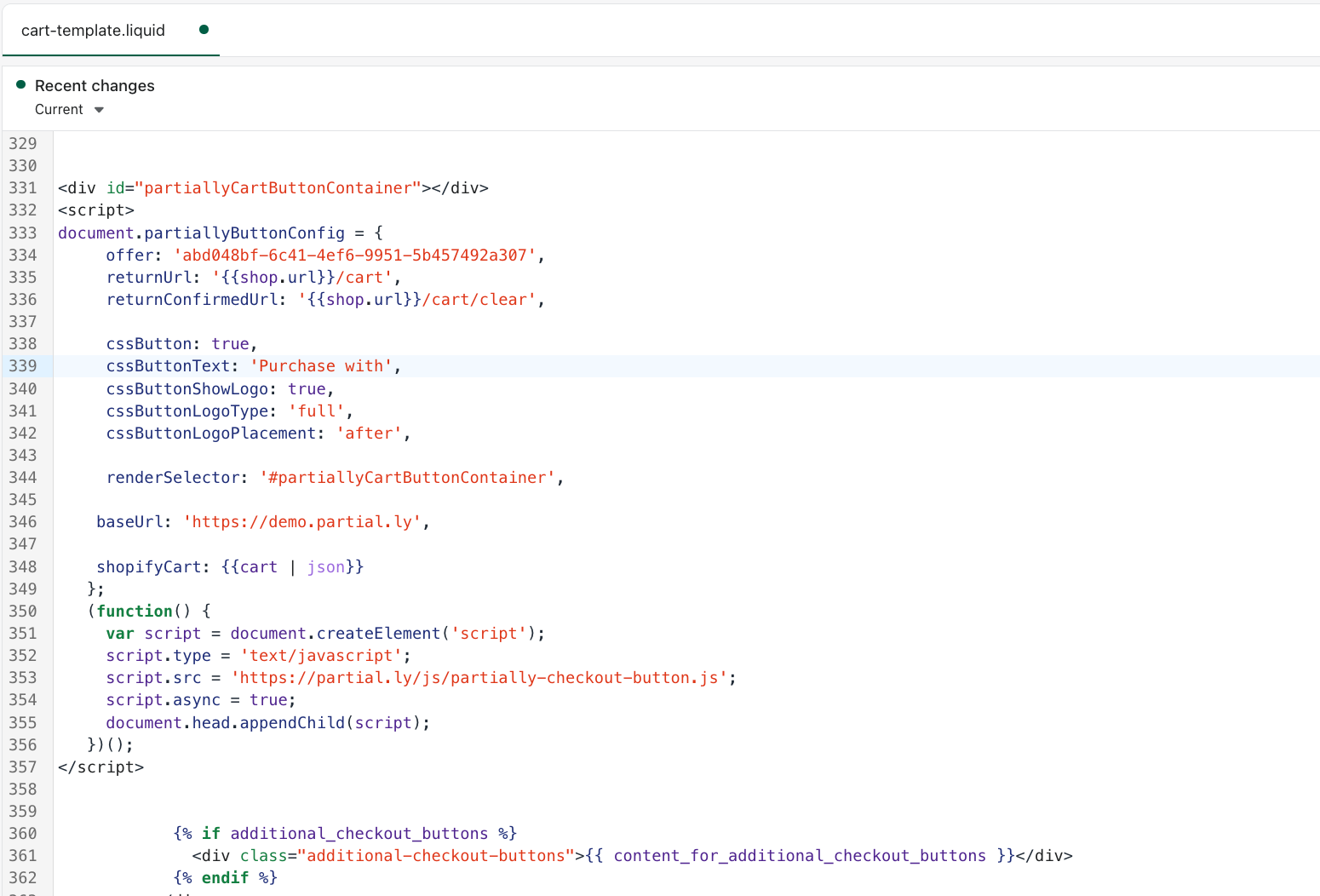
Partial.ly may not work with your cart drawers/popup windows/modals/etc. It is advised you convert your cart into a cart page under your Shopify Theme Settings. This can be done in your Shopify account under Online Theme > Live Theme > Customize > Theme Settings > Cart Page > Cart Type.
Similar to how you add Partial.ly to your cart page, locate the liquid file that contains your product info. There may be several files used for your product pages. You will want to locate the file that contains the code for your 'add to cart' button. This can be the product-template.liquid file, main-product.liquid file, product-form.liquid file, etc. Depending on your theme, the file may be named something else.
Once you locate where in the template you want the Partial.ly button to appear (typically below the code for the add to cart button), paste the code from the integration tool. Use the preview feature of your Shopify theme to view the update and adjust as needed.
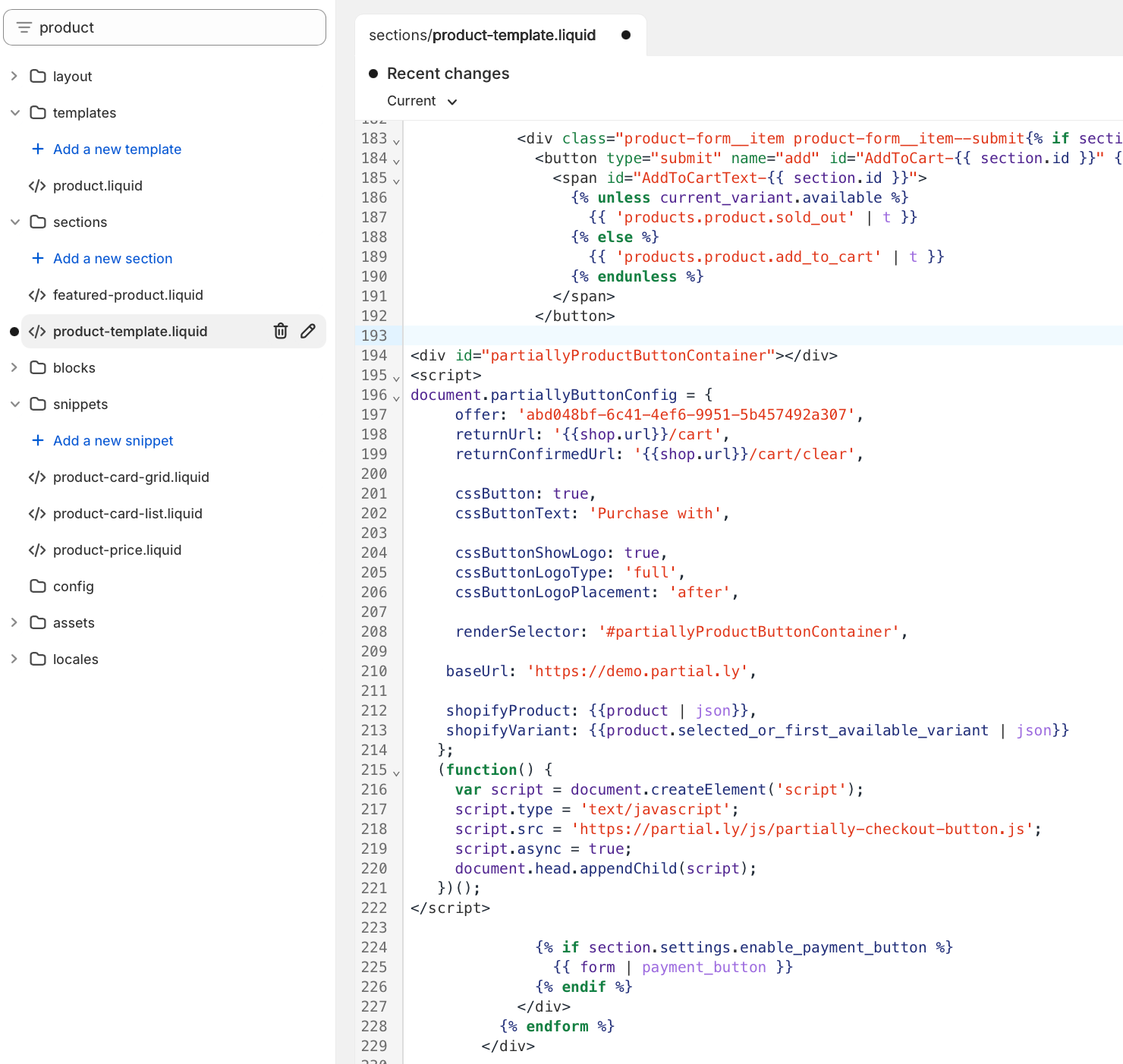
*Partial.ly may not work on product pages with variables (ex. size, color, date select, etc.) If your products have variables, we recommend you only use Partial.ly on the cart page to ensure customer choices are saved. You can always test with our demo site at https://demo.partial.ly
Yes, when in the integration tool, there will be various options to configure the checkout button, such as color and editing the text.
Your changes will automatically update the code. Once you have your configurations set, you can copy and paste the code into your Shopify theme.
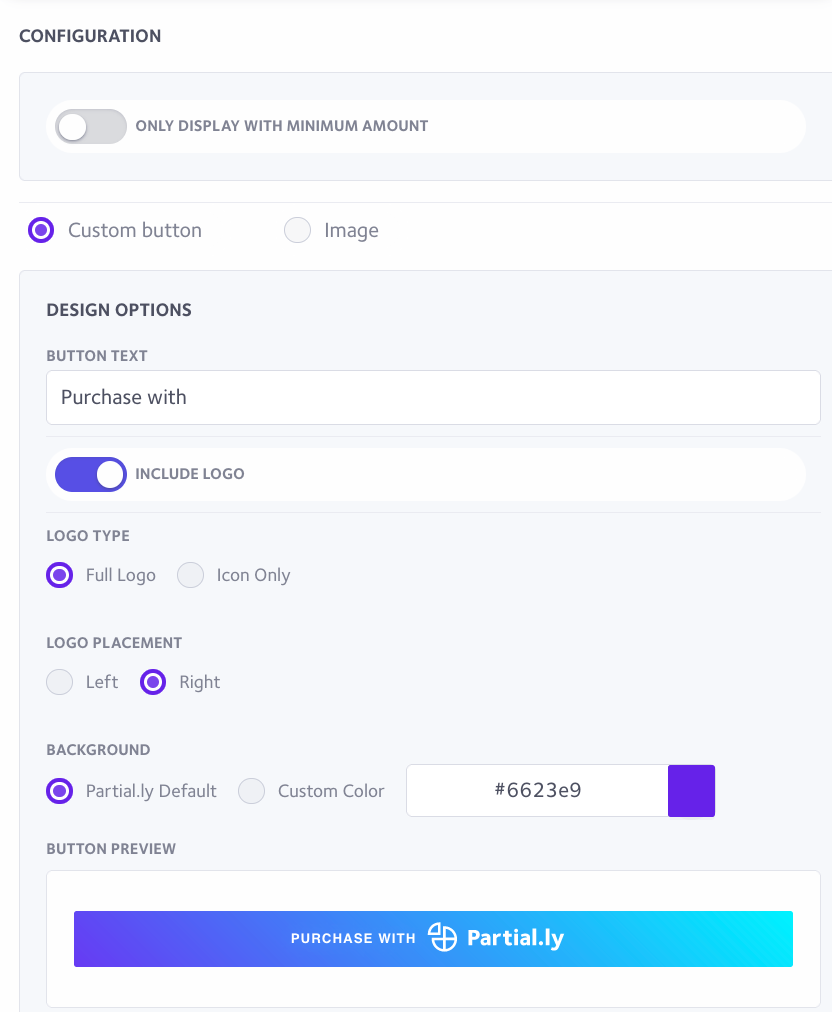
Yes, when in the integration tool, you can set a minimum order requirement by selecting 'Only display with minimum amount' and entering a value. The generated code will update with this new info. If you already installed the button code onto your theme, you will need to copy and paste the updated code.

The Partial.ly widget is a small bit of javascript code that you place on your product pages to let customers know they can purchase with a Partial.ly payment plan. The widget allows customers to interactively see the payment plan options available to them. You can read more about the Partial.ly widget here: About the Partial.ly Widget.

Learn more at: Partial.ly Widget for Shopify
Yes. Partial.ly will appear in English by default. If you need Partial.ly checkout to appear in another language, simply add the following line of code to the Partial.ly code snippet:
language: 'fr',Use the abbreviation of the language you need. For example, fr is for French.
var partiallyButtonConfig = {
     offer: 'abc123-def456-ghi789-jkl1011',
     returnUrl: '{{shop.url}}/cart',
     returnConfirmedUrl: '{{shop.url}}/cart/clear',
  language:'fr',
Yes. First, ensure that multi-currency is configured correctly on your shop: multiple currency setup
Once confirmed, you can add the following line of code to your Partial.ly script:
currency: '{{cart.currency.iso_code}}',
document.partiallyButtonConfig = {
     offer: 'abc123-def456-ghi789-jkl1011',
     returnUrl: '{{shop.url}}/cart',
     returnConfirmedUrl: '{{shop.url}}/cart/clear',
     currency: '{{cart.currency.iso_code}}',
For details on configuring the checkout button, please see our article on the Partial.ly Checkout Button: Partial.ly Checkout Button
For more on limiting Partial.ly, you can view samples of custom code in the following articles:
To complete this integration, you will need to set up Zapier zaps to create the Shopify order. Learn more here: Add Partial.ly Checkout Button to Your Shopify Cart and/or Product Pages
Check out our other Shopify support articles here: Shopify Support Articles.
Email our support team at support@partial.ly.